Find your EnGenius Service 1300 725 323
 
ENH202
Wireless-N Long Range Outdoor AP/CB
01-01-1970 Rev:19-02-2014

WDS Bridge Setting


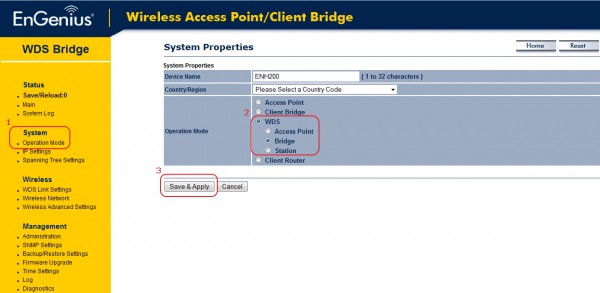
WDS Bridge Mode Setting

Step1:

1. Go to System > Operation Mode
2. Select WDS > Bridge
3. Click the Save&Apply button 

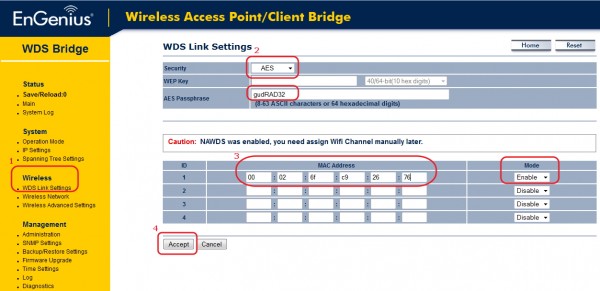
Step2:

1. Go to Wireless > WDS Link Settings
2. Select desired security and enter the passphrase
3. Enter the desired MAC address and select Enable mode from pull-down list
4. Click the Accept button 

Step3:

1. Go to WDS Link List page
2. Check the status of connected device 


For 3 APs WDS Bridge settings

AP1: 00026FC92611

AP2: 00026FC92612

AP3: 00026FC92613

In AP1, should enter MAC addresses of AP2 and AP3 
In AP2, should enter MAC addresses of AP1 and AP3
In AP3, should enter MAC addresses of AP1 and AP2

Take AP3 for example:

More Support Topic
- Installation guide 11-03-2013 Read
- How to config as Client Bridge. 17-02-2014 Read
- How to do config WDS Bridge Mode 17-02-2014 Read
- WDS link throughput test 17-02-2014 Read
- WDS Bridge Setting 19-02-2014 Read
- WDS AP mode with 2 devices (Repeater) 10-03-2014 Read
Talk to us to find out more support information on 1300 725 323.
Copyright © 2011 EnGenius Data Communication Australia | Privacy Policy